
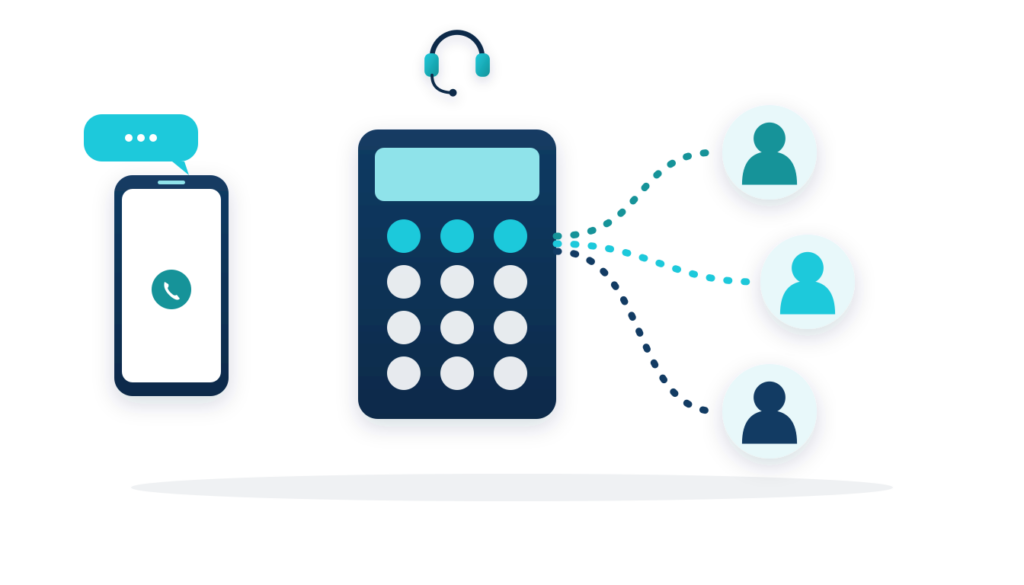
An auto attendant is the recorded voice that answers your business line and says something like “Thanks for calling. For sales, press 1. For support, press 2.” The caller picks an option, and the phone system sends the call to the right person, team, voicemail box or message. No human receptionist needed.
You’ll also hear it called a virtual receptionist, a phone menu, a phone tree or an IVR, which stands for interactive voice response. There are small technical differences between those terms, but for a small business they all mean the same thing: a menu that answers and routes your calls automatically.
In this guide I’ll explain how an auto attendant works, when a small business actually needs one, how to set one up step by step, the scripts I’d use, the mistakes that make callers hang up, and which business phone providers include one in 2026. Everything here is current as of November 2026.
A little context on why I care. I’ve been selling online since 2005 and running high-ticket dropshipping stores since October 2010, and I founded Ecommerce Paradise in 2015 to teach that model. On my stores, the phone number was on every page and phone sales were a big share of revenue. A buyer about to spend $4,000 on a product wants to reach a person fast. So I have strong opinions about phone menus, and most of them are about keeping menus short. The setup steps and plan details below come from provider help centers and pricing pages, checked on November 17, 2026, per our editorial standards. I haven’t tested every provider listed here hands-on, and I’ll say so where it matters.
What is an auto attendant?
An auto attendant is a phone system feature that answers incoming calls with a recorded or text-to-speech greeting, plays a list of options and routes the caller based on the key they press or, on newer systems, the words they say.
Here’s what a caller experiences, using the flow Quo describes in its phone menu (IVR) help article:
- They hear a greeting you recorded, uploaded or typed as text-to-speech
- They hear the menu options, like “Press 1 for Sales, 2 for Support”
- They make a selection with the keypad or by voice
- They get routed to the destination you picked for that option
That’s it. Behind the scenes, each option points to a destination: a person, a group of people that ring together, a voicemail box, a recorded message, an outside number or another menu.
Auto attendant vs IVR vs virtual receptionist
People mix these up all the time, so here’s the quick version.
- Auto attendant: a menu that routes calls. Press 1, press 2. This is the basic feature most small businesses need.
- IVR: interactive voice response. Technically a broader term that includes menus plus self-service, like checking an order status or paying a bill by phone. In small business phone apps, “IVR” and “phone menu” usually mean the same thing as auto attendant.
- Virtual receptionist: a marketing name some providers use for their auto attendant. Confusingly, some answering services also use “virtual receptionist” to mean a live human who answers remotely.
- AI receptionist: a newer category where an AI voice agent holds a real conversation, answers questions and takes messages instead of reading a menu. My AI receptionist guide covers that in detail.
How an auto attendant works
Every auto attendant has the same basic parts.
The greeting
The first thing callers hear. It should say your business name and get to the options fast. Most providers let you record it yourself, upload an audio file or type it in and have the system read it with text-to-speech. Quo’s help center lists all 3 options.
The menu options
Each key on the keypad maps to a destination. Quo’s help article says you can assign numbers 0 through 9 for up to 10 paths, and add voice keywords for each option so callers can just say “sales.” Google Voice’s admin guide works the same way, with a key and a short message for each option.
The destinations
This is where each option sends the call. According to Quo’s help article, each menu option can route to ringing users, a voicemail box, a recorded audio message, a forwarded outside number, another phone menu or Quo’s Sona AI agent. Most business phone systems offer a similar list.
The no-selection rule
What happens when someone presses nothing? Lots of older callers just wait. Quo’s default sends those callers to voicemail, with options to ring users, repeat the menu or forward instead. I’d always send a no-selection caller to a human or a live answer option, not voicemail. More on that below.
Business hours rules
Most systems let you run a different menu during business hours and after hours. Quo’s help article mentions placing the phone menu after a business hours condition for time-based menus. Google Voice’s admin guide also has business hours settings for its auto attendant.
Multi-level menus
A menu inside a menu. Press 2 for support, then press 1 for technical issues, press 2 for billing. Quo, Google Voice and most business VoIP providers support this. Just because you can doesn’t mean you should.
Do you actually need an auto attendant?
Honestly? Not always. Here’s how I’d think about it.
If you’re a one-person business, you probably don’t need a menu. A menu that says “press 1 for sales, press 2 for support” when both options ring the same person just wastes the caller’s time. You’d be better off ringing your phone directly and letting an AI agent or voicemail catch what you miss.
You start to need an auto attendant when:
- 2 or more people or teams answer calls, and they handle different things
- You get a lot of calls that only need simple info, like hours, address or a website for order tracking
- You want calls handled differently after hours
- You’re getting a lot of spam calls
That last one is a real benefit. Quo’s help article points out that phone menus filter out spam and robocalls, which usually don’t know what to do when faced with a menu. On a busy public business number, that alone can save your team a lot of interruptions.
My take for high-ticket sellers
On a high-ticket store, the sales line is the most valuable thing you have. When I ran my stores, the goal was simple: a buyer calls, a knowledgeable person answers, and they get a real answer about the product. Every extra menu layer is a chance for a $3,000 buyer to hang up and call your competitor.
So if you sell big-ticket items, make “sales” option 1, ring a real person, and keep it to 1 level. Put support, order status and everything else after it.
How to set up an auto attendant, step by step
The exact clicks vary by provider, but the process is basically the same everywhere. I’ll use Quo’s documented steps as the example, since that’s the system I run my own business line on.
Step 1: Map your call flow on paper first
Before you touch any settings, write it out. Who answers what? What happens after hours? What happens if nobody answers? A 5-minute sketch saves you hours of fixing a confusing menu later.
A simple small business map looks like this:
- Greeting with business name
- Press 1: Sales, rings 2 salespeople at once, then goes to an AI agent or voicemail
- Press 2: Existing orders and support, rings the support person, then voicemail
- Press 3: Hours and address, plays a recorded message, then returns to the menu
- Press 0 or no selection: rings everyone
- After hours: a different greeting, then an AI agent or voicemail
Step 2: Open the call flow or auto attendant settings
In Quo, the help center says to open Quo on the web or desktop app, go to Settings, then Phone numbers, select the number and click Edit call flow. Other providers call this section “call handling,” “call routing” or “auto attendant.” In Google Voice, it lives in the Google Admin console, and Google’s guide to setting up a Voice automated attendant walks through it. Google notes the feature is available with the Voice Standard and Premier subscriptions.
Step 3: Add the menu step and your greeting
In Quo you drag a Phone menu step into the call flow builder after the incoming call trigger, or after a business hours condition if you want a daytime-only menu. Then you add the greeting by uploading audio, recording it or using text-to-speech.
Step 4: Assign each key to a destination
Add a keypad option for each choice and pick where it goes. Name each option so your team can see what the caller selected. Quo’s help article mentions you can rename options so your team sees a label like “Sales” instead of just the digit the caller pressed. That’s a small detail that makes a big difference when you’re calling people back.
Step 5: Set the no-selection and after-hours rules
Decide what happens when callers don’t press anything and what happens outside business hours. Don’t leave the default without thinking about it.
Step 6: Test it from a phone that isn’t yours
Call your number from a different phone. Press every option. Press nothing. Call after hours. Have a friend who has never called your business try it and tell you where they got confused. I promise they’ll find something.
Auto attendant script examples
Here are scripts you can copy and adjust. I kept them short on purpose. Read each one out loud and time it. If the greeting before the first option takes more than about 10 seconds, cut it.
Small business main line
“Thanks for calling Summit Outdoor Kitchens. For sales and product questions, press 1. For an existing order, press 2. For our hours and address, press 3. To reach anyone on our team, press 0.”
High-ticket ecommerce store
“Thanks for calling Summit Outdoor Kitchens. If you have a question about a product or want to place an order, press 1 and a specialist will help you right now. If you already placed an order, press 2. For anything else, stay on the line.”
Notice what that does. It tells the buyer they’ll get a specialist right now, and it makes staying on the line work too. That’s the caller you most want to keep.
Service business (contractors, clinics, agencies)
“Thanks for calling Bright Path HVAC. If this is an emergency, press 1. To book a service visit, press 2. For billing, press 3. For anything else, press 0.”
After-hours greeting
“Thanks for calling Summit Outdoor Kitchens. Our team is available Monday through Friday, 9am to 6pm Eastern. Please leave your name, number and a quick message after the tone, and we’ll call you back the next business day. You can also find order tracking on our website.”
If your system supports an AI agent, I’d swap the voicemail for that. An AI agent can answer basic questions, capture the lead and text you a summary, which beats a voicemail box that nobody checks until Monday.
Holiday greeting
“Thanks for calling Summit Outdoor Kitchens. Our office is closed for the holiday and will reopen on Monday. Please leave a message and we’ll call you back as soon as we’re back.”
Auto attendant best practices
These are the rules I’d follow, based on what I learned running sales lines on high-ticket stores.
Put the money option first
Sales or new customers should be option 1. Existing customers and support come next. Nobody should have to listen to 5 options before they hear the one that makes you money.
Keep it to 3 or 4 options
The more options you add, the more people forget what they heard. 3 or 4 options is plenty for most small businesses. If you need more, you probably need better routing, not a longer menu.
Keep it to 1 level
Multi-level menus are for large companies with big departments. For a small business, 1 level is almost always enough. If you need a second level, use it for support, never for sales.
Always give a way to reach a person
Press 0 or “stay on the line” should always reach a human, or at least a live answer option. Trapping people in a menu with no exit is the fastest way to make them angry.
Don’t make every call go through the menu
If you have a dedicated sales number on your ads or website, consider ringing salespeople directly on that number and only using the menu on your general line. A virtual phone number for business costs very little, so having a separate number for sales is cheap.
Say the action before the number
“For sales, press 1” is easier to follow than “Press 1 for sales,” because the caller hears what they want first and then waits for the number. Small thing, but it helps.
Update it
Change the greeting for holidays and closures. If your hours change, change the recording. An outdated greeting tells customers nobody is paying attention.
Auto attendant vs AI receptionist vs live answering
In 2026, a phone menu isn’t the only way to answer calls automatically. Here’s how the options compare.
| Option | What it does | Best for | Typical cost |
|---|---|---|---|
| Auto attendant | Plays a menu and routes calls by keypress or voice keyword | Businesses with 2+ teams or people | Included in many business phone plans |
| AI receptionist | Holds a conversation, answers questions, takes messages, can book | Owners who miss calls or want 24/7 coverage | Included in some plans or a monthly add-on |
| Live answering service | A human receptionist answers remotely | High-touch businesses where every call matters | Usually per minute or per call bundles |
You can combine them. A common setup is an auto attendant during business hours that rings your team, with an AI receptionist catching missed and after-hours calls. That’s close to how I run my own line, where Quo’s AI agent Sona answers when I can’t. If you want a human instead, my roundup of the best answering services for small business compares live options. One I’d look at is PATLive, which is built for human-answered business calls.
Business phone providers with an auto attendant
Most business VoIP providers include a phone menu on at least some plans. Here are the ones I’d look at first. Quo is the one I use myself. The others are research-based, from official pricing pages and help centers checked on November 17, 2026.
| Provider | Auto attendant availability | Notes |
|---|---|---|
| Quo | Business and Scale plans | Phone menus, voice keywords, multi-level menus, Sona AI agent as a destination |
| Talkroute | Plus (1 menu) and Pro (unlimited menus) | Plans include a set number of users rather than per-user pricing |
| Grasshopper | Extensions on its plans, plus a virtual receptionist option | Its virtual receptionist page describes AI and human answering through a Smith.ai partnership |
| Nextiva | Auto attendant listed as a VoIP feature | Full business phone system, confirm which plan includes it |
| Google Voice | Standard and Premier subscriptions | Set up by an admin in the Google Admin console |
Quo
Quo (formerly OpenPhone) is what I use for my US business line, which I run from Bali. Its help center says phone menus are available on the Business and Scale plans. As of November 17, 2026, Quo’s pricing page lists Business at $33 per user per month or $23 billed annually, and Scale at $47 or $35 billed annually. The Starter plan at $19 ($15 annually) doesn’t include phone menus. There’s a 7-day free trial. The thing I like most is that a menu option can send the caller to the Sona AI agent, so even an unanswered option gets handled. My full Quo review has the details.
Talkroute
Talkroute is a good fit for small teams that want a menu without per-user pricing. On November 17, 2026, its pricing page listed Plus at $39 a month with 3 users and 1 menu, and Pro at $59 a month with 10 users, unlimited menus, multi-digit extensions and call recording. Talkroute says each menu includes 10 single-digit menu options. The Basic plan at $19 doesn’t list menus. I haven’t tested Talkroute hands-on.
Grasshopper
Grasshopper is the classic virtual phone system for solo owners and tiny teams. Its pricing page advertises plans starting at $14 a month and a 7-day free trial. Grasshopper uses extensions to route callers, and its virtual receptionist page says it partnered with Smith.ai to offer both AI and human receptionists. That’s a different thing from a basic phone menu, so check the current plan list before you buy, since what’s included changes by tier. My Grasshopper review goes deeper.
Nextiva
If you’re a growing team that wants a full phone system, Nextiva lists an auto attendant among its VoIP features, with a phone menu that routes calls to your team. I haven’t tested Nextiva hands-on for this site, so confirm which plan includes it before you buy. My Nextiva review covers pricing.
You can also compare more options in my list of the best VoIP for small business.
Google Voice
Google Voice has an auto attendant too, but Google says it’s only on the Voice Standard and Premier subscriptions, and an admin sets it up in the Google Admin console. If you already live in Google Workspace, it’s worth a look. My Google Voice for business guide covers the trade-offs.
Common auto attendant mistakes
These are the mistakes that make callers hang up.
- A 30-second greeting before the first option. Callers don’t care about your mission statement. Get to the options.
- “Please listen carefully, as our menu options have changed.” Unless they actually changed last week, cut this line.
- Every option goes to the same voicemail box. If that’s the case, you don’t need a menu.
- No way to reach a human. Always offer press 0 or stay on the line.
- After-hours callers hear the daytime menu, press 1 and ring nobody. Set business hours rules.
- Sales is option 4. Move it to option 1.
- Menu recorded on a laptop mic in a noisy room. Use text-to-speech or record in a quiet room. It makes a real difference in how professional you sound.
Does an auto attendant hurt sales?
It can, if it’s built badly. A short menu that gets buyers to a salesperson in a few seconds won’t hurt you, and the spam filtering alone usually makes it worth it. A long, multi-level menu that makes a ready-to-buy customer wait will cost you orders.
My rule from years of phone sales: a buyer should hear “sales” within the first 5 seconds and be ringing a human within 15 seconds. If your menu can’t do that, simplify it.
What I’d set up today
If I were setting up a small business phone line from scratch today, here’s what I’d do:
- Put the number on Quo’s Business plan so phone menus are included
- Build a 1-level menu with 3 options: sales, existing orders, everything else
- Ring 2 people at once for sales and send unanswered calls to the AI agent
- Use a separate after-hours flow that sends callers straight to the AI agent
- Record the greeting with text-to-speech so it’s easy to update
- Call it from a friend’s phone every quarter to make sure it still works
And if you’re still a solo operator, skip the menu for now. Ring your phone, let an AI agent catch the misses and add a menu once you hire your first salesperson. If you’re new to all of this, my business VoIP for beginners guide explains how the pieces fit together.
FAQ
What is an auto attendant on a phone system?
An auto attendant is a feature that answers calls with a recorded greeting, plays menu options and routes callers to the right person, team, voicemail or message based on the key they press or what they say. It replaces a human receptionist for basic call routing.
What is the difference between an auto attendant and an IVR?
An auto attendant is a menu that routes calls. IVR, or interactive voice response, is a broader term that also covers self-service tasks like checking an account by phone. In most small business phone systems, the 2 terms mean the same phone menu feature.
How much does an auto attendant cost?
Many business phone providers include it in their plans. Quo includes phone menus on its Business plan at $33 per user per month ($23 billed annually) as of November 2026, and Talkroute includes 1 menu on its $39 Plus plan. Check each provider’s pricing page for current numbers.
Can a small business use an auto attendant?
Yes. Any business with a cloud phone system can set one up in minutes. It’s most useful once 2 or more people answer calls for different things. A solo owner usually doesn’t need one.
What should an auto attendant greeting say?
Your business name, then the options, in the fewest words possible. For example: “Thanks for calling Summit Outdoor Kitchens. For sales, press 1. For an existing order, press 2. To reach our team, press 0.”
Can Google Voice do an auto attendant?
Yes, but only on the Voice Standard and Premier subscriptions, according to Google’s admin help center. An administrator sets it up in the Google Admin console.
Related guides
- Call forwarding for business lines
- AI receptionist guide
- How to choose a small business phone system
- Best virtual phone systems for small business
- What is a hosted PBX?

Trevor Fenner publishes VoIP Paradise, covering business phone software, remote-team communications and practical calling workflows. Articles distinguish documented research from direct testing.